WordPress 6.9 arrived on December 2, 2025, and for once the changelog actually deserves your attention. This is not a routine patch. It is the release that kicks off Phase 3 of Gutenberg, which means the platform has shifted its development focus from building the block editor to making it genuinely collaborative. The headline feature is block-level Notes — a commenting system built directly into the editor that works a lot like Google Docs. But Notes are just the start. Six new native blocks, automatic performance improvements that touch your Core Web Vitals score without a single configuration change, and a significantly smarter Command Palette all shipped in the same release.
The problem with most WordPress 6.9 coverage is that it is written for development teams and agencies. If you are a solo publisher, a small blog operator, or an independent webmaster running a lean content operation, most of the technical detail is noise. This guide cuts straight to what matters for you, what has actually changed in how you will use WordPress day to day, and which new tools are worth adding to your workflow right now.
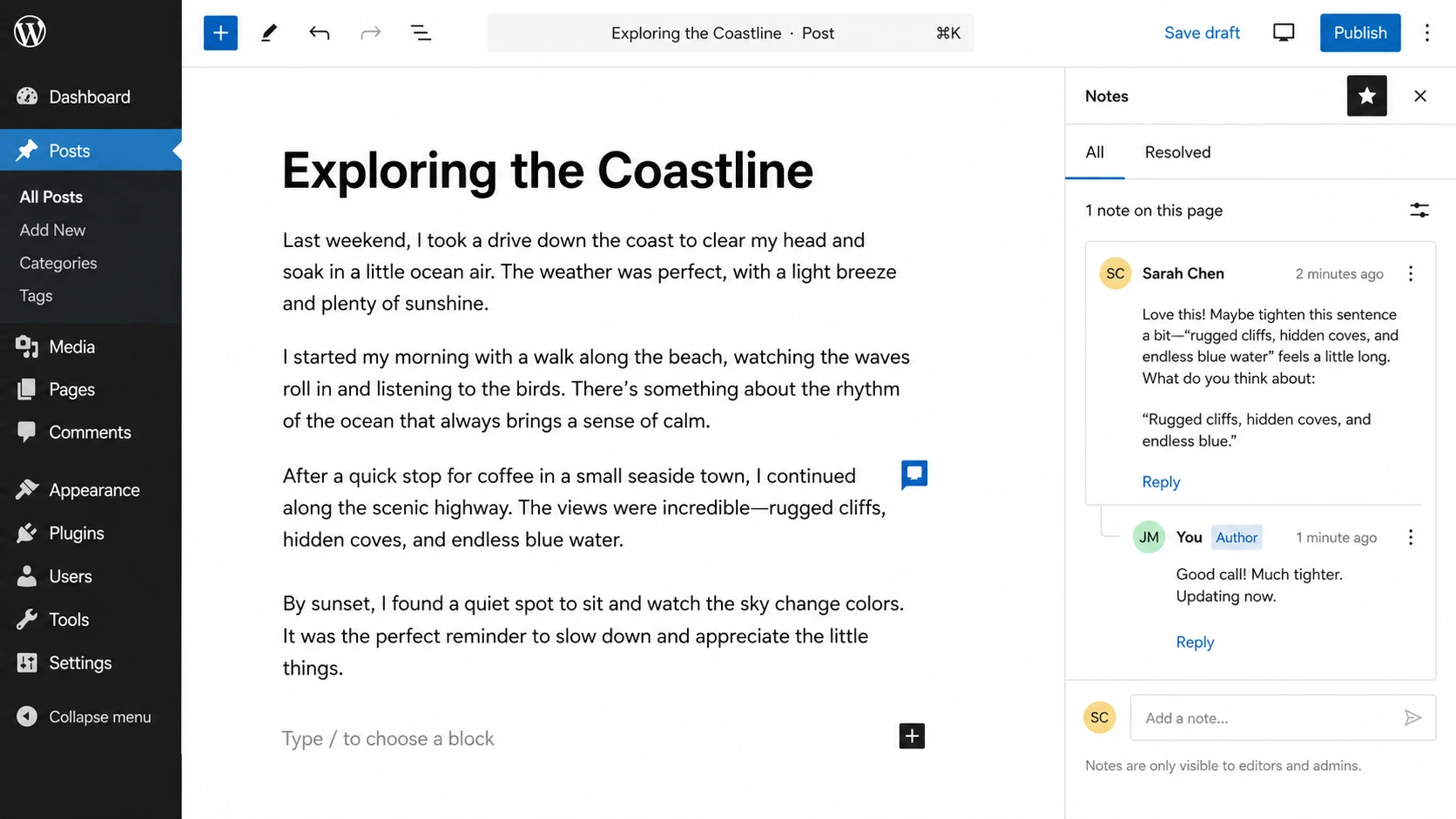
The Notes feature is being marketed as a team collaboration tool, and it is. But it is also genuinely useful if you work alone, and here is why. Notes let you pin a comment to any specific block inside the editor — a paragraph, an image, a heading, a button — and that comment stays attached to that block until you resolve it. It does not appear on your live site. It is purely an editorial layer that lives inside WordPress itself.
For a solo webmaster, that means you can finally leave yourself revision reminders tied to the exact place in a post that needs work, without relying on a separate notes app, a sticky document, or your email drafts folder. You can flag a section for fact-checking before you publish, mark an image placeholder for replacement, or leave a note on a paragraph you are not happy with and come back to it later. The Notes panel in the top right corner of the editor gives you a clean overview of every open note across the piece, with a single click jumping you directly to the relevant block.
If you do work with a freelance editor, a VA, or a content reviewer even occasionally, Notes eliminates the entire back-and-forth cycle of downloading a post, marking it up in a separate document, and trying to communicate which sentence you meant when you said "the second paragraph under the third heading." The note is on the block. There is no ambiguity. For anyone who has ever lost an hour to that kind of coordination overhead, this is a meaningful quality-of-life improvement hidden inside a feature that sounds like it is only for enterprise teams.
One note for truly solo operators: the feature adds a small icon in the block toolbar for every block. If you find it visually cluttered on a site where you are the only user, the Notes feature can be disabled through the editor preferences panel.
Six New Native Blocks
WordPress 6.9 ships with six new blocks built directly into core: Accordion, Math, Time to Read, Terms Query, Comment Count, and Comment Link. Each one replaces functionality that previously required a third-party plugin, which means fewer plugin dependencies, fewer compatibility conflicts, and one less thing to update and maintain. Here is the honest breakdown of which ones are worth your immediate attention as an independent publisher.
The Accordion Block
This is the most universally useful addition in the entire release for content-heavy sites. The WordPress Accordion block lets you create collapsible sections — the kind you see on FAQ pages, support guides, and long-form tutorials — natively inside the editor without any plugin. Each Accordion block is made up of a heading (the clickable question or title) and a panel (the content that expands when the heading is clicked). The panel can contain any other block, which means you are not limited to plain text inside your collapsible sections.
From an SEO standpoint, the Accordion block supports anchors, meaning you can create direct links to specific FAQ answers. That matters because FAQ-structured content with proper anchor links is one of the most reliable formats for earning featured snippet placement and, increasingly, AI search citations. If you maintain a site with a resources section, a how-to library, or any kind of Q&A content, replacing your plugin-based accordions with the native block is worth doing on your next content pass.
The Time to Read Block
Small feature, real impact. The Time to Read block automatically calculates and displays an estimated reading time for any post based on word count. It updates live as you write. On the front end, it gives readers an immediate expectation of what they are committing to before they start — which has a measurable positive effect on scroll depth and time on page, both behavioral signals that feed into how search algorithms assess content quality. Readers who know a piece is four minutes long are more likely to stay than readers who have no idea what they are in for. You can optionally display the word count alongside the reading time, which is useful for long-form content where readers may want that context upfront.
The Math Block
Unless you are running an educational, technical, or science-focused site, this one is not for you and you can skip it entirely. For the webmasters who do publish mathematical content, it is a significant addition. The MathML block supports both LaTeX and MathML rendering for formulas and equations, either as standalone blocks or inline within text. Previously this required a dedicated plugin with its own rendering dependencies. It now lives in core.
Terms Query, Comment Count, Comment Link
These three blocks are primarily useful for theme builders and developers who need granular control over how categories, tags, and comment metadata display across a site. For most solo content publishers working inside a pre-built theme, they are background infrastructure you will benefit from without directly using.
Performance Improvements That Work Without You Doing Anything
This is the part of WordPress 6.9 that most webmasters will not notice consciously but will feel in their site speed scores. The release includes three automatic performance improvements that require zero configuration changes on your part.
The first is smarter CSS loading. WordPress 6.9 now only loads the stylesheets for blocks that actually appear on a given page, rather than loading the entire block stylesheet library on every page load regardless of what is on it. For most WordPress sites, this meaningfully reduces the amount of CSS a browser has to parse before rendering content, which directly improves Largest Contentful Paint scores — the Core Web Vitals metric that measures how fast your main content becomes visible.
The second is script optimization. Non-critical JavaScript resources are now deferred to the footer by default rather than loading in the document head where they block rendering. This also improves LCP and reduces the time before your page becomes interactive, which feeds into the INP metric that Google has been weighting more heavily since the March 2026 core update.
The third is backend task optimization. WordPress runs scheduled background processes called cron jobs — things like checking for plugin updates, sending scheduled emails, and cleaning up transients. In 6.9, these background tasks are better isolated from front-end page generation so they are less likely to compete with actual page load requests. On shared hosting environments where server resources are constrained, this matters more than it might sound.
None of these changes require you to update your caching plugin settings, modify your theme, or touch any configuration. They ship automatically with the update. If your site was already close to passing Core Web Vitals thresholds, 6.9 may push you over without any additional optimization work.
The Command Palette: Your New Keyboard Shortcut to Everything
WordPress 6.9 significantly expands the Command Palette — the keyboard shortcut launcher you access with Ctrl+K (or Cmd+K on Mac) — to cover far more of the site editor. If you have not been using the Command Palette, now is a good time to start. It lets you jump directly to any page, post, template, or setting by typing a few characters of what you are looking for. No more navigating through menus to find the template editor or hunting through the settings panel for a specific option.
In 6.9, the palette is accessible from more places across the admin and now surfaces a wider range of actions including block-level operations. For a solo webmaster who publishes frequently and does repetitive navigation tasks inside the admin, building the Command Palette shortcut into muscle memory is one of those low-effort habits that saves meaningful time across a year of publishing.
Block Visibility: A Hidden Gem for Draft Sections
A smaller addition that deserves more attention than it is getting: WordPress 6.9 includes a block visibility toggle that lets you hide individual blocks from the front end without deleting them from the editor. You can toggle a section invisible while it is still in progress, publish the post, and the hidden blocks simply do not render on the live site. When the section is ready, toggle it back on and it appears without requiring a new publish action for the entire post.
For solo publishers who work on long-form content in sections, or who want to publish a piece while still finalizing a specific section, this is a practical workflow improvement. Previously the workaround was leaving incomplete sections in HTML comments or maintaining a separate draft document. The native block visibility toggle handles this cleanly inside the editor itself.
Before updating any WordPress site to 6.9, back up completely — files and database — using a plugin like Updraft Plus or Duplicator, or through your hosting control panel. Test on a staging environment first if your host provides one. The performance improvements to on-demand CSS loading are automatic but can affect custom plugins or blocks that relied on core block stylesheets loading globally. If you use heavily customized themes or a large plugin stack, check your staging environment for any visual inconsistencies before pushing to production.
The Notes feature, the new blocks, and the Command Palette expansion are all additive — they do not change how existing blocks or themes function. The performance changes are the only area where conflicts are possible, and they are relatively rare on straightforward content publishing setups.
For most solo webmasters running a standard WordPress installation with a mainstream theme and a modest plugin stack, this update is safe to apply and the performance gains alone justify doing it promptly. WordPress 6.9 currently powers the majority of actively updated WordPress installations and represents the most substantial quality-of-life upgrade for independent publishers the platform has shipped in several years.
What Comes Next: WordPress 7.0 on the Horizon
WordPress 7.0 is expected in late 2026, and the development community has already signaled its defining feature: full real-time collaboration, meaning multiple users editing the same post simultaneously with live cursor tracking — true Google Docs parity inside WordPress. The Notes feature in 6.9 is explicitly positioned as the first step toward that capability, with the 7.0 release expected to extend Notes beyond posts and pages into the full site editor as well.
For solo webmasters, the practical implication is that the WordPress editorial workflow is about to look significantly different from what it has been for the past decade. If you work with any kind of external collaborators — editors, designers, clients — building familiarity with the Notes system now will make the 7.0 real-time collaboration tools feel like a natural extension rather than a new learning curve.
6.9 is not the destination. It is a well-built on-ramp to where WordPress is going.
If you want to get the most out of what 6.9 offers on the performance side, the Panic Mode troubleshooting guide on this site covers Core Web Vitals fixes in detail, including caching setups, image optimization, and hosting performance thresholds that determine whether your LCP score passes or fails. And if you are thinking about how the new Accordion block's FAQ structure and anchor link support can improve your AI citation visibility, the Generative Engine Optimization guide walks through exactly why question-and-answer structured content gets cited by ChatGPT and Perplexity at higher rates than standard prose. For webmasters looking to pair their publishing infrastructure with a stronger lead generation system, Infinity Agent Solutions builds the kind of automated content and conversion workflows that turn a well-maintained WordPress site into a consistent business asset.