You know the feeling. You open your browser, type in your own URL, and something is very wrong. Maybe it's a white page with a message you've never seen before. Maybe your Google Search Console dashboard just showed you a traffic cliff that makes your stomach drop. Maybe you got a notification that your site is serving malware to visitors. Whatever the specific flavor of bad news, the instinct is the same: panic.
This guide is the antidote to that panic. Below are the four most common webmaster emergencies every site owner eventually faces, along with a clear, step-by-step response for each one. Bookmark this page now, before you need it, so when the moment comes you can move fast and fix things right.
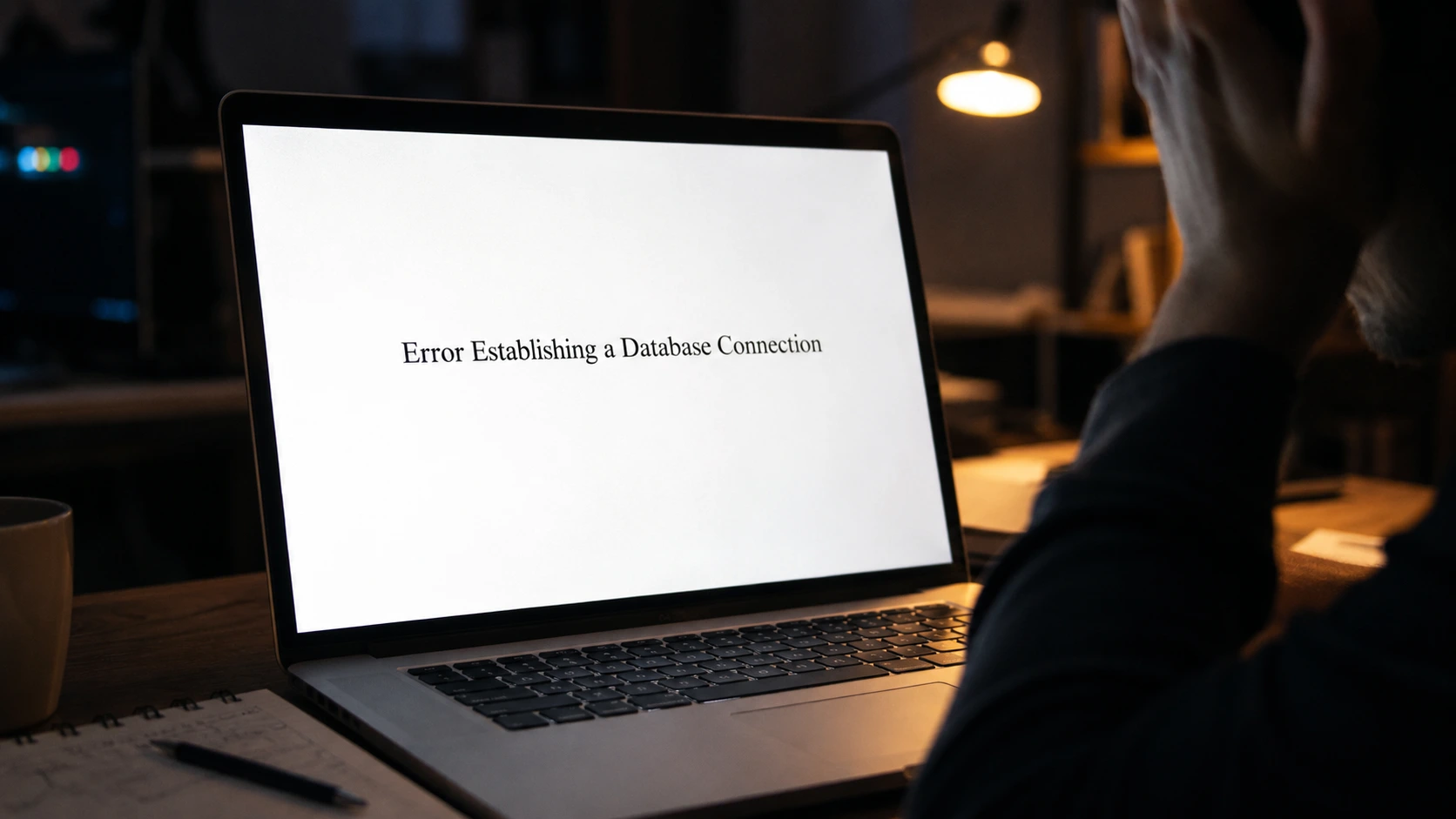
Emergency 1: "Error Establishing a Database Connection" in WordPress
This is one of the most searched error messages in the history of WordPress, and for good reason. It's alarming because it takes your entire site offline, blocks your admin dashboard, and gives you almost no information about what went wrong. The good news, before you do anything else, is that your content is almost certainly safe. It's sitting in your database exactly where you left it. WordPress simply can't reach it. Your job is to figure out why.
What causes this error? In about 60 percent of cases, the culprit is incorrect database credentials in your wp-config.php file. This is especially common right after a site migration, a hosting password change, or a host-side account update where the database password was modified but the WordPress configuration file was never updated to match. The other common causes are a crashed MySQL server, corrupted database tables, or corrupted WordPress core files from a failed update.
Step 1: Check your wp-config.php file. Access your site via FTP or your hosting control panel's file manager. Open the wp-config.php file at the root of your WordPress installation and verify four values: DB_NAME, DB_USER, DB_PASSWORD, and DB_HOST. Cross-reference these against the actual database credentials in your hosting control panel (usually under MySQL Databases or the equivalent). If any of them are wrong, correct them, save the file, and reload your site. This single step resolves the problem the majority of the time.
Step 2: Check whether your database server is running. If your credentials are correct and the error persists, the problem may be on your host's end. Log into your hosting control panel and check whether MySQL is active. On shared hosting, contact your host directly and ask them to confirm the database server status. A traffic spike or a host-side infrastructure issue can bring down the MySQL service temporarily.
Step 3: Run the WordPress database repair tool. If the server is running and credentials are correct, you may be dealing with a corrupted database. Add this line to your wp-config.php file: define('WP_ALLOW_REPAIR', true); Then visit yoursite.com/wp-admin/maint/repair.php and run the repair. Important: remove that line from wp-config.php as soon as the repair is done. That page requires no authentication and leaving it open is a security risk.
Step 4: Replace WordPress core files. If nothing else has worked and the error appeared right after a WordPress update, the core files may be corrupted. Download a fresh copy of WordPress from WordPress.org, then use FTP to replace the wp-admin and wp-includes folders entirely. Do not delete wp-content, wp-config.php, or any file in the root directory that isn't part of core WordPress. This step resolves corruption-related connection failures without touching your content or database.
Emergency 2: Your Google Rankings Dropped Overnight
Waking up to a ranking drop is one of the most disorienting experiences in search engine optimization. One day your pages are driving traffic and revenue. The next, they're gone from page one with no warning, no notification, and no obvious explanation. The instinct is to start making changes immediately. Resist that. A scattered response almost always makes things worse. The correct move is to diagnose before you act.
Step 1: Confirm the drop is real in Google Search Console. Rank trackers can misfire due to location sampling, personalization, or data delays. Before doing anything else, open Google Search Console, go to Performance, and compare your clicks, impressions, and average position across the affected timeframe. A real sitewide drop confirms you were impacted. If only specific pages moved while overall metrics held, the issue is content-level rather than sitewide.
Step 2: Cross-reference with Google's update calendar. Google ran a March 2026 core update from March 27 through April 8, followed by a May 2026 core update beginning May 21. If your traffic drop aligns with either window, an algorithm update is the most likely cause. Core updates are not penalties. They are re-evaluations of which content best serves a given search query. Your site wasn't punished. It was re-ranked relative to competing content that Google now judges more useful. The response is improving your content quality, not filing a reconsideration request.
Step 3: Run a technical audit. If the drop doesn't align with a known update window, check for technical issues. Common culprits include: pages accidentally marked noindex, robots.txt changes blocking Googlebot, broken redirects from a recent site migration, HTTPS certificate errors, or mobile usability failures. Google Search Console surfaces many of these directly under the Coverage and Core Web Vitals tabs. Address any technical errors before moving on to content analysis.
Step 4: Audit the pages that dropped most. Export your top 50 pages by position decline from Search Console. Look for patterns: are these all the same content type, the same topic cluster, or the same author? Pages that dropped during a core update usually share a common quality signal problem. The May 2026 update followed the same pattern as previous core updates: it rewarded content demonstrating genuine expertise and first-hand experience while suppressing surface-level pages that covered a topic without adding anything new. If your dropped pages fit that description, the recovery path is a substantive rewrite that adds original insight, updated data, and real expert perspective.
Step 5: Wait before rebuilding. Core update rollouts take 12 to 20 days to complete. Rankings continue fluctuating throughout the rollout. Making major site changes while an update is still in progress can compound the confusion. Once the rollout window closes, let your revised data stabilize for two additional weeks before evaluating whether your recovery efforts are working.
Emergency 3: Your Website Has Been Hacked
A compromised website is the most stressful emergency a webmaster can face. Hackers can redirect your visitors to dangerous sites, serve malware to your audience, steal customer data, and destroy your Google rankings, sometimes permanently if you don't act fast enough. The combination of urgency and complexity makes it easy to make mistakes under pressure. Here is the correct sequence.
Step 1: Take the site offline and change all passwords immediately. Put your site into maintenance mode using your hosting control panel or a plugin. Then change every password connected to the site: your hosting account, FTP/SFTP credentials, WordPress admin password, database password, and any third-party service APIs connected to the site. If the attacker still has active credentials, every cleanup step you take can be undone.
Step 2: Back up the compromised site before touching anything. This sounds counterintuitive, but backing up the hacked version of your site serves two purposes. It preserves all your recent content (posts, pages, settings, media) in case something goes wrong during cleanup. And it gives you evidence of the attack that a security professional can analyze to determine the entry point. Store this backup separately from your clean backups.
Step 3: Scan for malware and identify infected files. Install a dedicated WordPress security plugin like Wordfence, MalCare, or Sucuri and run a full scan. These tools compare your files against known-clean versions of WordPress core, themes, and plugins, and flag anything that has been modified or injected. Common hiding spots for malicious code include the wp-content/uploads directory (which is world-writable by default), functions.php in your active theme, .htaccess, and wp-config.php.
Step 4: Clean the infected files and database. Replace WordPress core folders (wp-admin and wp-includes) with fresh copies downloaded from WordPress.org. Reinstall all plugins and themes from their official sources rather than attempting to clean them manually. For database infections, use phpMyAdmin to inspect the wp-options and wp-posts tables for injected scripts or unfamiliar records. Delete anything you didn't put there. This is the most technically demanding step, and if you are not comfortable in phpMyAdmin, hiring a professional cleaner is a reasonable call.
Step 5: Request Google review and monitor Search Console. If Google flagged your site as dangerous in Search Console under the Security Issues tab, address every item listed, then submit a reconsideration request through Search Console. Google typically reviews within 72 hours. Until the flag is cleared, your search visibility and referral traffic will be heavily suppressed. Most sites that clean and resubmit promptly recover their search rankings within a few weeks.
Emergency 4: Your Site Is Failing Core Web Vitals
A failing Core Web Vitals score rarely feels like an emergency until suddenly it does. You notice your rankings slipping, your bounce rate climbing, and your conversion numbers quietly eroding. Then you open PageSpeed Insights and see red. The March 2026 core update increased the weight of page experience signals beyond their previous tie-breaker role, meaning sites with poor Core Web Vitals now face measurable ranking disadvantages, particularly on mobile where Google's mobile-first indexing applies.
The three metrics you need to pass are Largest Contentful Paint (LCP), which measures how fast your main content loads (target: under 2.5 seconds); Interaction to Next Paint (INP), which replaced First Input Delay in 2024 and measures responsiveness across the entire visit (target: under 200 milliseconds); and Cumulative Layout Shift (CLS), which measures visual stability as the page loads (target: under 0.1).
Fix LCP first, because it is the most impactful.} The single biggest LCP killer on most sites is an unoptimized hero image. Convert your above-the-fold images to WebP or AVIF format, compress them without sacrificing visible quality, and set the fetchpriority attribute to "high" on your LCP image so the browser loads it before anything else. Image optimization alone can improve LCP scores by 40 to 60 percent on most image-heavy sites. After images, look at your hosting performance. If your server takes more than 600 milliseconds to respond (measurable as Time to First Byte in PageSpeed Insights), upgrading from shared hosting to managed WordPress hosting, VPS, or a cloud server should be your first priority. Roughly 50 percent of WordPress Core Web Vitals failures trace back directly to hosting performance.
Add caching and a CDN. A layered caching strategy dramatically reduces server load and speeds delivery for repeat visitors. For WordPress, WP Rocket and LiteSpeed Cache are the most reliable WordPress caching plugins currently available. Pair your caching setup with a Content Delivery Network (CDN) like Cloudflare, which serves your static assets from servers geographically close to each visitor rather than routing everything through your origin server. This combination addresses both TTFB and overall load time simultaneously.
Fix INP by auditing your JavaScript. INP failures almost always come from excessive third-party JavaScript. Ad scripts, chat widgets, social embeds, and analytics tags all compete for the browser's main thread during page interactions. Audit your plugins ruthlessly. Deactivate anything you are not actively using. Defer or lazy-load scripts that do not need to run on initial page load. The goal is to keep the main thread clear enough that when a user clicks or taps something, the browser can respond within 200 milliseconds.
Fix CLS by reserving space for dynamic elements. Layout shifts happen when the browser doesn't know how much space an element needs until after it loads, causing content to jump around. The fix is simple in principle: always define explicit width and height attributes on images and video elements. Always reserve space for ad units with CSS before the ad loads. Avoid inserting content above the fold after the initial page render. These changes prevent the visual instability that tanks CLS scores and drives users away in the first seconds of their visit.
Prevention Is Cheaper Than Recovery
Every emergency covered in this guide is easier to prevent than to fix under pressure. The database error becomes trivial if you have current credentials documented and a recent backup to restore from. The ranking drop becomes manageable if you are monitoring Search Console weekly and maintaining content quality proactively. The hack becomes survivable if you have daily backups stored off-site and a security plugin running active scans. The Core Web Vitals failure becomes a minor tune-up if you are running PageSpeed Insights monthly rather than only after rankings start moving.
Building a simple monthly maintenance checklist, backup verification, Search Console review, security scan, and a quick PageSpeed check, costs about an hour of your time. Recovering from any one of these emergencies without those systems in place can cost days. The math is not complicated. Website maintenance is not optional infrastructure. It is the cheapest insurance policy available to any webmaster running a site that matters.
The next time something breaks, and something always eventually breaks, you will know exactly what to do.
If your rankings dropped during one of the 2026 core updates and you are trying to understand whether AI content played a role, the guide to Google's E-E-A-T standards and AI content guidelines breaks down exactly what Google is now evaluating and how to fix it. For webmasters who want to get their content cited by ChatGPT and Perplexity as part of a longer-term visibility strategy, the Generative Engine Optimization guide covers the robots.txt configuration and content structure changes that make that possible. If you are ready to move beyond emergency fixes and build systems that prevent these problems from compounding in the first place, Infinity Agent Solutions works with site owners to automate the operational and content layers that keep a site healthy and visible over time.